 Mirrord
Mirror your iPhone to Linux with AirPlay
Most AirPlay receivers are Windows or Mac only. Mirrord runs on Linux too, as an AppImage or a .deb, and receives AirPlay from iPhones and iPads over Wi-Fi, with sound. No terminal setup.
How to do it
- Install Mirrord. Download the .deb (Ubuntu, Debian, Mint) or the AppImage (most distributions) from this site. The .deb brings in the GStreamer plugins it uses.
- Let the iPhone find it. The iPhone and the computer must be on the same network. If you run a firewall (ufw, firewalld), allow mDNS (UDP 5353) and Mirrord’s AirPlay ports, or allow Mirrord on your home network.
- Mirror. On the iPhone, open Control Center → Screen Mirroring → Mirrord (your computer’s name). Or use the free Mirrord app from the App Store.
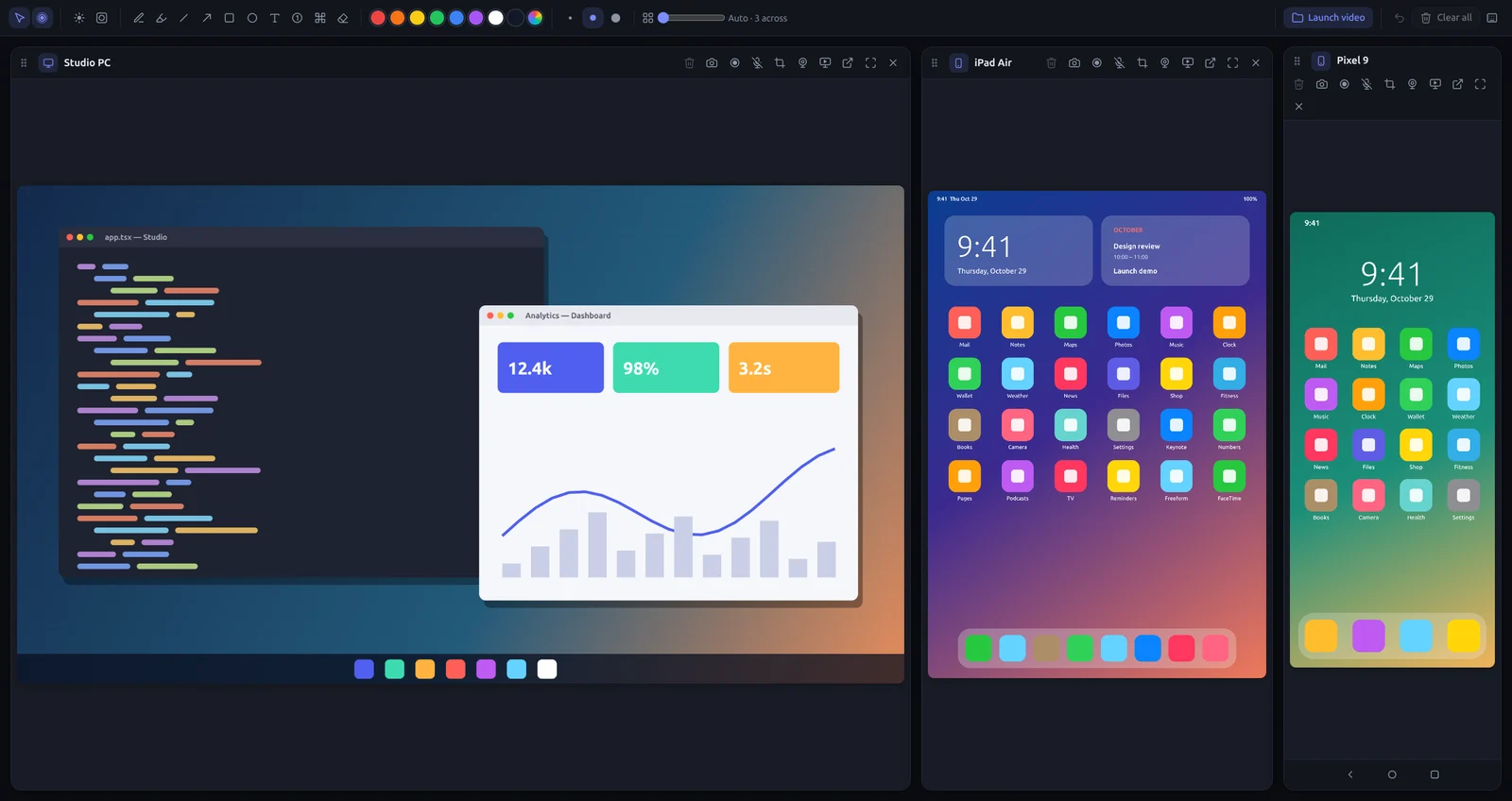
- Draw, record, present. Your iPhone shows up in the Screens window: draw on it, screenshot it, record it with your microphone, or present it full screen.
Wayland and X11
Mirroring and recording work on both. Controlling your Linux computer from another computer needs an Xorg (X11) session, because Wayland doesn’t let apps move the mouse.
Android too
Android phones mirror over Wi-Fi with the Mirrord app, or over USB with mouse and keyboard control (Mirrord brings its own adb). On some distributions, USB needs the Android udev rules (the android-sdk-platform-tools-common package on Debian and Ubuntu).
Try Mirrord free
For Windows, macOS and Linux. Mirror one screen free; Pro is $29 once, for 2 computers.
Questions
Which distributions?
Any recent 64-bit distribution: the .deb for Ubuntu, Debian, Mint and Pop!_OS; the AppImage for Fedora, Arch, openSUSE and others.
Is the screen sent over the internet?
No. The iPhone talks straight to your computer on your own network, and nothing goes through our servers.